Page Not Found
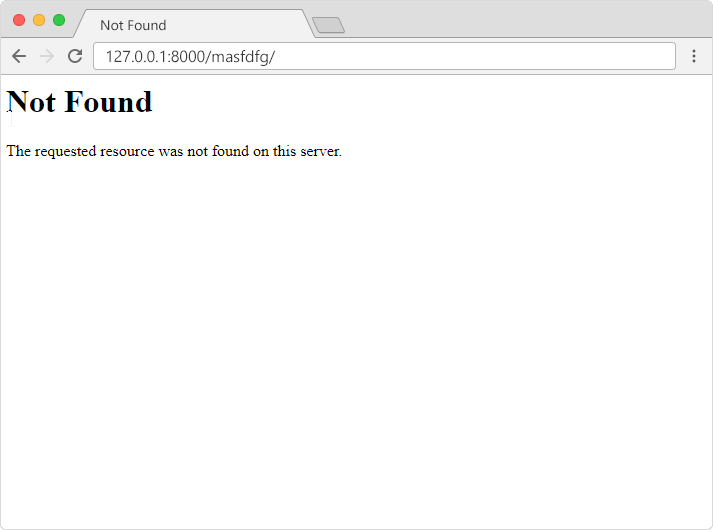
If you try to access a page that does not exist (a 404 error), Django directs you to a built-in view that handles 404 errors.
You will learn how to customize this 404 view later in this chapter, but first, just try to request a page that does not exist.
In the browser window, type 127.0.0.1:8000/masfdfg/ in the address bar.
You will get one of two results:
1:
2:

If you got the first result, you got directed to the built-in Django 404 template.
If you got the second result, then DEBUG is set to True in your settings, and you must set it to False to get directed to the 404 template.
This is done in the settings.py file, which is located in the project folder, in our case the my_tennis_club folder, where you also have to specify the host name from where your project runs from:
Example
.
.
# SECURITY WARNING: don't run with debug turned on in production!
DEBUG = False

ALLOWED_HOSTS = ['*']
.
.
Note: Important: When DEBUG = False, Django requires you to specify the hosts you will allow this Django project to run from. In production, this should be replaced with a proper domain name:
ALLOWED_HOSTS = ['yourdomain.com']
In the browser window, type 127.0.0.1:8000/masfdfg/ in the address bar, and you will get the built-in 404 template:
Customize the 404 Template
Django will look for a file named 404.html in the templates folder, and display it when there is a 404 error.
If no such file exists, Django shows the "Not Found" that you saw in the example above.
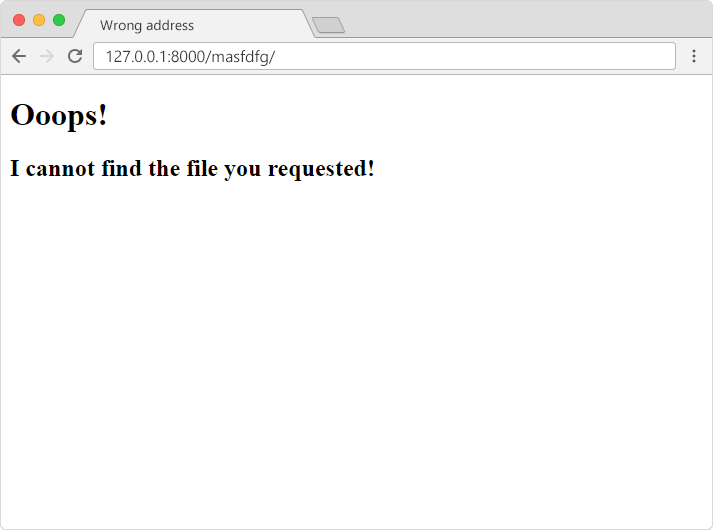
To customize this message, all you have to do is to create a file in the templates folder and name it 404.html, and fill it with whatever you want:
  <!DOCTYPE html>
<html>
<title>Wrong address</title>
<body>

<h1>Ooops!</h1>

<h2>I cannot
  find the file you requested!</h2>

</body>
</html>
In the browser window, type 127.0.0.1:8000/masfdfg/ in the address bar, and you will get the customized 404 template:
Reset Debug = True
You should reset the debug property to True to continue with the tutorial.
Example
.
.
# SECURITY WARNING: don't run with debug turned on in production!
DEBUG = True

ALLOWED_HOSTS = []
.
.
